
Abstract
The aim of the centralized visualization module is to provide a uniform display of e-prescriptions. The service creates a standardized PDF document from an e-prescription data record in accordance with CHMED16A (prescription revision 3) and the specifications of the Swiss e-prescription initiative.
Installation
Local installation as Standalone-App (Windows, MacOS X and Linux)
The service endpoint is provided by a standalone application (Electron Application|https://www.electronjs.org/) that is downloaded and installed locally. The application periodically checks the repository to see if an update is available. If this is the case, the provided version will be downloaded and installed. This approach offers the advantage of always having the latest version and thus ensuring that the e-prescription is created in accordance with the latest specifications.
After the installation, the application is started and a REST enpoint is exposed under port number 3000: http://localhost:3000/health
Installations on desktop environments
- On MacOS
- Open the latest release from here
- Click on
Mac armto download the latest binary - Double click on the downloaded file to install
- Drag the app to the applications folder
- Start the ERX application
- Since the application is not installed from app store, you will need to click on the following pop.
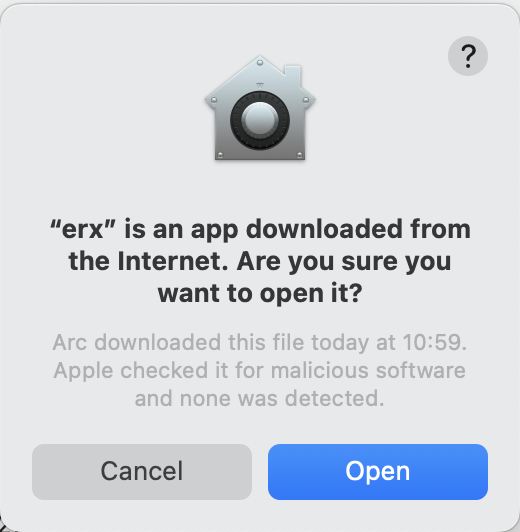
- Click on
Opento open the application - the application is now running in the background, there is no UI that can be seen.
- To verify that the application is running, open your browser and go to
http://localhost:3000/health
- On Windows
- Open the latest release from here
- Click on
Windows Installerto download the latest binary - Double click on the downloaded file to install
- Since signing the application is work in process at the moment, you will need to click:
- Click on
More infoto open the application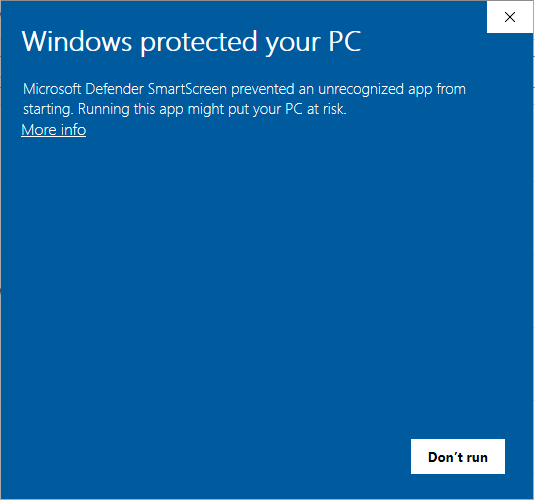
- Click on
Run anywayto open the application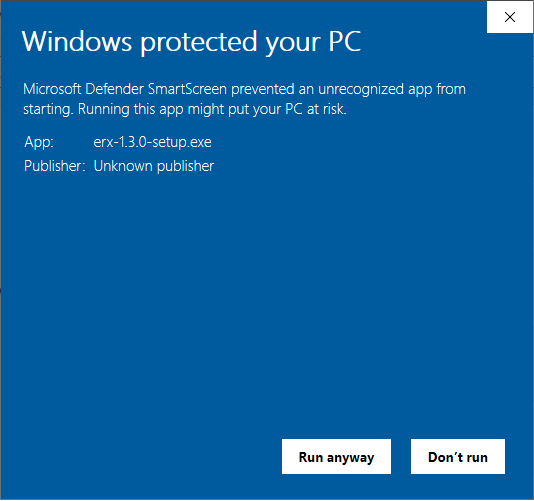
- Start the ERX application
- To verify that the application is running, open your browser and go to
http://localhost:3000/health
- On Linux Desktop
- Open the latest release from here
- Click on
Linux AppImageto download the latest binary - Double click on the downloaded file to install
- Start the ERX application
- To verify that the application is running, open your browser and go to
http://localhost:3000/health
3.1 Linux Server
- Check the latest release from here
- Copy this script to the server (depending on the package manager you use, download the correct copy the correct script)
- Change permissions to execute it with
chmod +x erx-appimage-installer.sh - Edit the script to the correct verion -APP_VERSION in the top.
- Run the script with
./erx-appimage-installer.sh
The script will install all the necessary dependencies and will download the specified version of the application and run it.
Install with Docker Container and Helm Chart
The difference between the Desktop and Docker is that the Desktop version handles the auto-updates, while the Docker version needs to be updated manually by pulling the latest image and recreating the container.
Pull the image:
docker pull healthinfonetag/erx-app:latestOr pull a specific version:
docker pull healthinfonetag/erx-app:v1.12.6Run the container
docker run --rm -p 3000:3000 healthinfonetag/erx-app:latestThe service will be available at http://localhost:3000 The erx-app accepts the environment variable LOG_LEVEL (default: info).
Avaiblable levels:
| Level | Description |
|---|---|
error | Only errors |
warn | Errors and warnings |
info | General information (default) |
http | HTTP request logging |
verbose | More detailed information |
debug | Debug-level details |
silly | Everything |
Compatibility
We do support the following linux distros: Debian, Ubuntu,Rocky 10, Rocky 9, Open SUSE Leap,Alma Linux 10, CentOS Stream 10, Fedora 42. Supported Docker Version: 20.x+
Upgrade process (only Standalone-App)
Once the application is installed, upgrade on every platform happens on every start automatically in the background and periodically if the application is running. Keep in mind the upgrade process will download the upgrade in the background, but the installation will block the service until the upgrade is done (no requests will be performed during the installation process and generally the service will be down during the upgrade).